Business Hours

Everyday 10:00AM To 7:00PM

5600 Albemarle RD. STE 600

980 430 1213

Category: News and update

095iphone 13 and iphone 13 mini apple announcements september 2021

Here’s how the iPhone 13 compares to the iPhone 12 in price, battery life, camera specs and more

Apple’s iPhone 13 lineup, consisting of the iPhone 13 Mini, iPhone 13, iPhone 13 Pro and iPhone 13 Pro Max, offers a brand-new camera system, a tweaked design with a smaller notch, longer battery life and storage upgrades. (You can now get an iPhone 13 Pro with as much as 1TB of storage.) For the price of $729 (£679, AU$1,199) for the Mini and $829 (£779, AU$1,349) for the base iPhone 13, is it worth it to upgrade from the iPhone 12? 

The iPhone 12 and iPhone 12 Mini aren’t going anywhere. Both phones’ prices dropped, so they now start at $599 for the 64GB iPhone 12 Mini and $699 for the 64GB iPhone 12. If you can make do with less storage space, the iPhone 12 models are still great phones that run plenty fast, support 5G and are powered by Apple’s A14 Bionic chip. The iPhone 12 Pro and 12 Pro Max, however, have been discontinued to make room for the 13 Pro and 13 Pro Max.

Let’s go over a few key differences between the 13 line and the 12 line, to help determine whether you might want to spring for a 2021 iPhone or stick to a 2020 iPhone.

Price

At first look, the iPhone 12 and iPhone 12 Mini’s starting prices are a full $100 cheaper than the corresponding iPhone 13 models, but that’s before you take storage space into consideration. Both iPhone 12 models start at 64GB, which several years ago used to be plenty of room. Now with apps getting larger and cameras taking even more detailed photos along with video, you could run up against that storage limit over the course of your time with the phone. The iPhone 13 starts at 128GB, so if you compare that with a 128GB iPhone 12, now you’re looking at only a $50 price difference.

For that $50 difference, you do get a lot for your money by going with the iPhone 13, which we will go over in later sections. But if all you want is a 5G iPhone and you’re unlikely to install a ton of apps on it, the iPhone 12 is indeed cheaper while still having most of same features as the iPhone 13.

Battery life

The iPhone 13 is estimated to run for 2.5 hours longer than the iPhone 12, while the iPhone 13 Mini is estimated to run 1.5 hours longer than the 12 Mini. In CNET editor Patrick Holland’s iPhone 13 and 13 Mini review, he notes that both phones easily make it through a day on a single charge. This was particularly notable since his personal iPhone 12 Mini usually requires a 3 p.m. recharge to make it through the day.

A15 Bionic vs. A14 Bionic

For most tasks, the A14 Bionic and A15 Bionic chips will both likely breezily handle your FaceTime calls, texts, apps, games and streaming videos with little discernible difference. However, the iPhone 13’s A15 Bionic may already be designed to be compatible with new devices and software in the works by Apple. Reports suggest that Apple could be working on an augmented reality and VR headset that could use the iPhone 13 and future iPhone models as a host device.

Currently, the iPhone 13’s chip does power the Cinematic video recording mode on the 2021 phones. In this mode the phone can automatically focus on subjects as they enter the frame while unfocusing on others, giving your videos a movielike look. These videos can also be edited after the fact should you want more control over who is in focus.

Cameras

The camera specs of the iPhone 13 and the iPhone 12 are identical. Both phones include 12-megapixel sensors on the front and the back cameras. But that doesn’t tell the whole story about the photo processing differences between the phones. 

On the iPhone 13, the new camera layout gives the wide-angle camera a larger sensor with sensor-based stabilization. The new diagonal layout of the iPhone 13’s cameras allows for that larger sensor, while the ultrawide camera’s new sensor helps it gather more light. On the software side, the iPhone 13 also includes Photographic Styles, which allow you to customize the way your camera develops your photos. These styles are not like Instagram filters, as they analyze the subject of your photo and apply the selected style as needed.

iPhone 13, iPhone 13 Mini camera testing: See how Apple’s new phones take photos

iPhone 13

iPhone 13 Mini

That said, the iPhone 12’s cameras are still no slouch, including many of the same enhancements offered by iOS 15. In our review, Holland notes that the iPhone 13’s camera upgrades do not make drastic differences, but improvements between the models year over year were noticeable.

Spec vs. spec

Check the chart below comparing the iPhone 13, the iPhone 13 Mini, the iPhone 12 and the iPhone 12 Mini to see a spec-by-spec comparison among the non-Pro iPhones that are currently available. Let us know in the comments if you’d rather save money with the iPhone 12, jump in with a new iPhone 13 or if your current iPhone is still the best for all of your daily needs.

IPHONE 13 MINI & 13 VS. IPHONE 12 MINI & 12

iPhone 12 MiniiPhone 13 MiniiPhone 12iPhone 13
Display size, resolution6.1-inch OLED; 2,532×1,170 pixels5.4-inch OLED; 2,340×1,080 pixels5.4-inch OLED; 2,340×1,080 pixels6.1-inch OLED; 2,532×1,170 pixels
Pixel density460ppi476ppi476ppi460ppi
Dimensions (inches)5.78×2.82×0.29 in5.18×2.53×0.3 in5.18×2.53×0.29 in5.78×2.82×0.3 in
Dimensions (millimeters)146.7×71.5×7.4mm132x64x7.65mm131.5×64.2×7.4mm147x72x7.65mm
Weight (ounces, grams)5.78 oz; 164g4.97 oz; 141g4.76 oz; 135g6.14 oz; 174g
Mobile softwareiOS 14iOS 15iOS 14iOS 15
Camera12-megapixel (wide), 12-megapixel (ultrawide)12-megapixel (wide), 12-megapixel (ultrawide)12-megapixel (wide), 12-megapixel (ultrawide)12-megapixel (wide), 12-megapixel (ultrawide)
Front-facing camera12-megapixel12-megapixel12-megapixel12-megapixel
Video capture4KHDR video recording with Dolby Vision up to 4K at 60 fps4KHDR video recording with Dolby Vision up to 4K at 60 fps
ProcessorApple Bionic 14Apple A15 BionicApple A14 BionicApple A15 Bionic
Storage64GB, 128GB, 256GB128GB, 256GB, 512GB64GB, 128GB, 256GB128GB, 256GB, 512GB
RAMUndisclosedUndisclosedUndisclosedUndisclosed
Expandable storageNoNoNoNo
BatteryUndisclosed; Apple lists 15 hours of video playbackUndisclosed; Apple lists 17 hours of video playbackUndisclosed; Apple lists 15 hours of video playbackUndisclosed; Apple lists 19 hours of video playback
Fingerprint sensorNo (Face ID)No (Face ID)No (Face ID)No (Face ID)
ConnectorLightningLightningLightningLightning
Headphone jackNoNoNoNo
Special features5G enabled; MagSafe; water-resistant (IP68); wireless charging; dual-SIM capabilities (nano-SIM and e-SIM)5G enabled; MagSafe; water-resistant (IP68); wireless charging; dual-SIM capabilities (nano-SIM and e-SIM)5G enabled; MagSafe; water-resistant (IP68); wireless charging; dual-SIM capabilities (nano-SIM and e-SIM)5G enabled; MagSafe; water-resistant (IP68); wireless charging; dual-SIM capabilities (nano-SIM and e-SIM)
Price off-contract (USD)$629 (64GB), $679 (128GB), $779 (256GB)$729 (128GB), $829 (256GB), $1,029 (512GB)$729 (64GB), $779 (128GB), $879 (256GB)$829 (128GB), $929 (256GB), $1,129 (512GB)
Price (GBP)£799 (64GB), £849 (128GB), £949 (256GB)£679 (128GB), £779 (256GB), £979 (512GB)£699 (64GB), £749 (128GB), £849 (256GB)£779 (128GB), £879 (256GB), £1,079 (512GB)
Price (AUD)AU$1,349 (64GB), AU$1,429 (128GB), AU$1,599 (256GB)AU$1,199 (128GB), AU$1,369 (256GB), AU$1,719 (512GB)AU$1,199 (64GB), AU$1,279 (128GB), AU$1,449 (256GB)AU$1,349 (128GB), AU$1,519 (256GB), AU$1,869 (512GB)

Apple’s iPhone 13, new iPad Mini and more: Everything we saw at Apple’s September event

Apple announcements September 14 2021: iPhone 13, new iPads, Apple Watch Series 7, and more

Apple announcements September 14 2021: iPhone 13, new iPads, Apple Watch Series 7, and more

Need a repair on your iPhone 13 or iPhone 12? Go Mobile offers iPhone repair in Charlotte, NC for cracked screens, batteries, charging ports and more.

apple event 091421 iphone 13 34

We’ll explain how each of Apple’s new iPhones compares spec by spec.

It’s getting quite complicated to pick an iPhone. This year, Apple’s lineup includes four models, the iPhone 13 and 13 Mini, and the iPhone 13 Pro and Pro Max. There are also a number of color options, storage capacities and other differences that make the choice of which iPhone to buy just a little more confusing. (Want to be more confused? The iPhone SE 3 and iPhone 14 are rumored, too.)

Apple announced its new iPhone lineup at its September event alongside the Apple Watch 7, iPad Mini 6 and updated entry-level iPad. The updated iPhone runs on iOS 15, which is now publicly available to install, and features a few camera upgrades, upped storage, a new A15 Bionic processor and more. (Here’s how the iPhone 13 compares to the iPhone 12 lineup, and how how the iPhone 13 compares to the iPhone 13 Mini.) Although the iPhone 13 lineup mirrors the iPhone 12, Apple’s 2021 iPhones offer a new design, updated cameras and feature upgrades for a similar price as 2020’s iPhone 12 models. Here’s everything to know.  

apple-event-091421-iphone-13-34
The iPhone 13 lineup has arrived. Here’s how the different models compare.

Price: iPhone 13 line (mostly) matches the cost of its predecessor

The iPhone 13 lineup mostly mimics the pricing for the iPhone 12. Although Apple has since done away with the 64GB storage option for its standard and Mini options, the pricing of the iPhone 13 have stayed the same. The iPhone 13 Mini starts at $699 for 128GB of storage. The standard iPhone 13 starts at $799, the Pro starts at $999 and Pro Max at $1,099. 

The prices for the Pro versions are similar to other high-end smartphone models like the Galaxy S21 Plus and Galaxy S21 Ultra, which cost $1,000 and $1,200, respectively. 

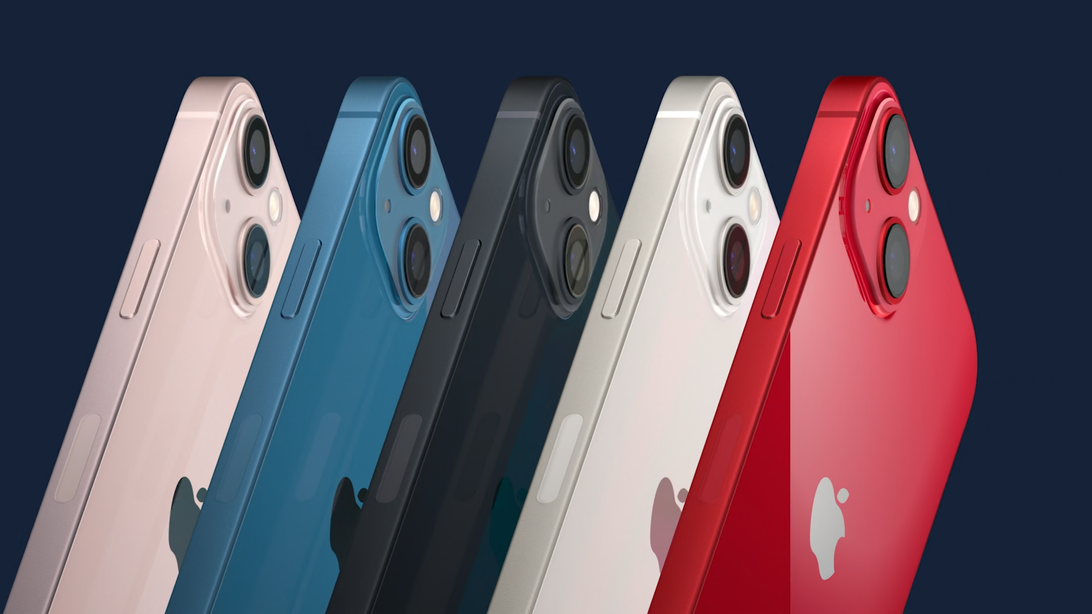
iPhone 13 and iPhone 13 Mini: Check out the redesigned camera module and smaller notch

iPhone 13 and 13 Mini

iPhone 13 and 13 Mini

The prices for the new iPhone increase as you go up in storage, especially since the iPhone features a 1TB storage option for the first time. The extra storage is only available on the Pro models and ups the price of an iPhone 13 Pro Max to $1,599. 

Here are US prices for each of the iPhone 13 models:

IPHONE 13 SERIES US PRICES AND STORAGE

128GB storage256GB storage512GB storage1TB storage
iPhone 13 Mini$699$799$999NA
iPhone 13$799$899$1,099NA
iPhone 13 Pro$999$1,099$1,299$1,499
iPhone 13 Pro Max$1,099$1,199$1,399$1,599

Storage: iPhone 13 Pro and Pro Max have 1TB options

Apple has ditched its 64GB storage option for its new iPhone. The standard iPhone 13 and Mini now come in 128GB, 256GB and 512GB storage options, while the Pro and Pro Max also come in a 1TB storage option. This is the first time you have the option to get 1TB of storage on an iPhone.https://www.youtube.com/embed/Hehk8eFIjxw

Size and design: All iPhone 13 models have a 20% smaller notch

All four versions of the iPhone 13 are thicker and heavier than their counterpart in last year’s lineup, but with a smaller notch. Apple has included a notched display on every iPhone since the 2017 iPhone X, as a place for the selfie camera. The iPhone 13’s notch is 20% smaller than it was on the iPhone 12. 

The design of the camera setup shifted for the iPhone 13 Mini. The camera lenses are now situated diagonally from each other, rather than one atop the other like on the iPhone 12 Mini. 

The iPhone 13 lineup ranges in screen size from 5.4 inches to 6.7 inches. The iPhone 13 Mini is 5.4 inches, the standard iPhone 13 and Pro models are both 6.1 inches and the Pro Max is 6.7 inches.

IPHONE 13 SIZES

iPhone 13 modelSize
iPhone 13 Mini5.4 inches
iPhone 13 standard6.1 inches
iPhone 13 Pro6.1 inches
iPhone 13 Pro Max6.7 inches

iPhone 13 Pro, 13 Pro Max camera testing: Photos from Apple’s highest end 2021 phones

iPhone 13 Pro

iPhone 13 Pro

Display: Only iPhone 13 Pro and Pro Max have 120Hz refresh rate

The iPhone 13 Pro and Pro Max models both feature a 120Hz display. The number of hertz a phone screen is rated for refers to the number of frames per second it can display, which determines how fast and smooth the screen feels when you’re scrolling through apps and web pages. The standard and Mini models, however, don’t feature the 120Hz display. 

Apple seems late to the game, since other high-end smartphones, including the Samsung Galaxy S21 and OnePlus 9 Pro, already have a 120Hz refresh rate. 

Camera: All the upgrades for each iPhone 13 model

The iPhone 13 lineup features a few new camera upgrades, including the addition of cinematic mode and macro photography.

But, similar to the iPhone 12 lineup, the lidar scanner is still only available on the Pro and Pro Max. This is the second generation of iPhones to only feature a lidar scanner on its higher-end models. 

The scanner, which made its debut in the 2020 iPad Pro, can be seen on both the iPhone 12 Pro and iPhone 12 Pro Max. The scanner is used to help with autofocus and taking pictures in low lighting. (You can also use lidar to measure your friends’ heights at parties, which is kind of cool.) 

iPhone 13, iPhone 13 Mini camera testing: See how Apple’s new phones take photos

 See all photos

iPhone 13

iPhone 13 Mini

Apple’s iPhone 13 and iPhone 13 Mini have two improved cameras, with 12-megapixel wide and ultrawide lenses. The iPhone 13 Pro and Pro Max have three new rear cameras, with 12-megapixel wide, ultrawide and telephoto lenses. All of the iPhones in Apple’s 2021 lineup can also take night mode shots for the first time. Apple also gave the Pro models a more advanced version of ProRes video. 

iPhone 13 Pro cameras
The iPhone 13 Pro, shown above, has wide angle, ultrawide and telephoto cameras.Screenshot by Stephen Shankland/CNET

Battery: The iPhone 13 is said to have more battery life than before

Apple says the new iPhones sport longer battery life than the iPhone 12 lineup. The extended battery life results from a combination of a bigger battery, iOS 15 and the A15 Bionic chip, according to Apple.

It says the iPhone 13 and iPhone Mini hold a charge for 17 and 19 hours of video playback, respectively. The iPhone 13 Pro is said to live for 22 hours, and the iPhone Pro Max for 28 hours.

Apple doesn’t disclose exact battery specs for its iPhones, but a teardown by iFixit reveals significantly more capacious cells than in last year’s models. Notably, the iPhone 13 Pro has a smaller battery than the iPhone 13, apparently because the Pro’s screen uses less energy.

If you’re itching for more about the iPhone 13, take a look at which color you should buy and which settings to change right away. You can also check out everything that was announced at Apple’s September event, including the Apple Watch 7, iPad Mini 6 and updated entry-level iPad. And, here’s how to download and install iOS 15 and iPadOS 15.

IPHONE 13, 13 MINI, 13 PRO AND 13 PRO MAX SPECS

iPhone 13 MiniiPhone 13iPhone 13 ProiPhone 13 Pro Max
Display size, resolution5.4-inch OLED; 2,340×1,080 pixels6.1-inch OLED; 2,532×1,170 pixels6.1-inch OLED; 2,532×1,170 pixels6.7-inch OLED; 2,778×1,284 pixels
Dimensions (Inches)5.18 x 2.53 x 0.3 in5.78 x 2.82 x 0.3 in5.78 x 2.82 x 0.3 in6.33 x 3.07 x 0.3 in
Dimensions (Millimeters)132 x 64 x 7.65 mm147 x 72 x 7.65 mm147 x 72 x 7.65 mm161 x 78 x 7.65 mm
Weight (Ounces, Grams)4.97 oz; 141g6.14 oz; 174g7.19 oz; 204g8.48 oz; 240g
Mobile softwareiOS 15iOS 15iOS 15iOS 15
Camera12-megapixel (wide), 12-megapixel (ultrawide)12-megapixel (wide), 12-megapixel (ultrawide)12-megapixel (wide), 12-megapixel (ultrawide), 12-megapixel (telephoto)12-megapixel (wide), 12-megapixel (ultrawide), 12-megapixel (telephoto)
Front-facing camera12-megapixel12-megapixel12-megapixel12-megapixel
Video captureHDR video recording with Dolby Vision up to 4K at 60 fpsHDR video recording with Dolby Vision up to 4K at 60 fpsProRes video recording up to 4K at 30 fps (1080p at 30 fps for 128GB storage)*ProRes video recording up to 4K at 30 fps (1080p at 30 fps for 128GB storage)*
ProcessorApple A15 BionicApple A15 BionicApple A15 BionicApple A15 Bionic
Storage128GB, 256GB, 512GB128GB, 256GB, 512GB128GB, 256GB, 512GB, 1TB128GB, 256GB, 512GB, 1TB
Expandable storageNoNoNoNo
BatteryUndisclosed; Apple lists 17 hours of video playbackUndisclosed; Apple lists 19 hours of video playbackUndisclosed; Apple lists 22 hours of video playbackUndisclosed; Apple lists 28 hours of video playback
Fingerprint sensorNo (Face ID)No (Face ID)No (Face ID)No (Face ID)
ConnectorLightningLightningLightningLightning
Headphone jackNoNoNoNo
Special features5G enabled; MagSafe; water resistant (IP68); wireless charging; dual-SIM capabilities (nano-SIM and e-SIM)5G enabled; MagSafe; water resistant (IP68); wireless charging; dual-SIM capabilities (nano-SIM and e-SIM)ProMotion technology with adaptive refresh rates up to 120Hz; lidar scanner; 5G enabled; MagSafe; water resistant (IP68); wireless charging; dual-SIM capabilities (nano-SIM and e-SIM)ProMotion technology with adaptive refresh rates up to 120Hz; lidar scanner; 5G enabled; MagSafe; water resistant (IP68); wireless charging; dual-SIM capabilities (nano-SIM and e-SIM)
Price off-contract (USD)$699 (128GB), $799 (256GB), $999 (512GB)$799 (128GB), $899 (256GB), $1,099 (512GB)$999 (128GB), $1,099 (256GB), $1,299 (512GB), $1,499 (1TB)$1,099 (128GB), $1,199 (256GB), $1,399 (512GB), $1,599 (1TB)
Price (GBP)£679 (128GB), £779 (256GB), £979 (512GB)£779 (128GB), £879 (256GB), £1,079 (512GB)£949 (128GB), £1,049 (256GB), £1,249 (512GB), £1,449 (1TB)£1,049 (128GB), £1,149 (256GB), £1,349 (512GB), £1,549 (1TB)
Price (AUD)AU$1,199 (128GB), AU$1,369 (256GB), AU$1,719 (512GB)AU$1,349 (128GB), AU$1,519 (256GB), AU$1,869 (512GB)AU$1,699 (128GB), AU$1,869 (256GB), AU$2,219 (512GB), AU$2,569 (1TB)AU$1,849 (128GB), AU$2,019 (256GB), AU$2,369 (512GB), AU$2,719 (1TB)

iPhone 13 MiniStarts at $699

The iPhone Mini 13 is the entry-level model in Apple’s new 2021 iPhone line. It’s the most affordable model, and offers the smallest screen size of the four — 5.4 inches

.$699 AT APPLEiPhone 13Starts at $799

The standard iPhone sports a 6.1-inch screen and two rear cameras. For 2021, Apple is pledging longer battery life, improved cameras and better durability versus the iPhone 12

.$799 AT APPLEiPhone 13 ProStarts at $999

The Pro version of the iPhone 13 adds a third rear camera with 3x optical zoom (up from 2x on the iPhone 12), a stainless steel body and a ProMotion screen with refresh rates up to 120Hz for smoother scrolling.

$999 AT APPLEiPhone 13 Pro MaxStarts at $1,099

The Pro Max is Apple’s largest iPhone, with a 6.7-inch screen. It’s basically an upscaled version of the iPhone 13 Pro. Like that model, storage options for the Pro Max extend to a whopping 1TB for the first time.

$1,099 AT APPLE

Need a repair on your iPhone 13, 13 mini, 13 Pro or 13 Pro Max? Go Mobile offers iPhone repair in Charlotte, NC for cracked screens, batteries, cameras and more.

iPhone repair

After long wait, Apple parts, tools, and manuals — starting with iPhone 12 and iPhone 13 — available to individual consumers to be able to do a simple repairs by it self..

Illustration of a woman repairing an iPhone.

Apple announced Self Service Repair, which will allow customers who are comfortable with completing their own repairs access to Apple genuine parts and tools. Available first for the iPhone 12 and iPhone 13 lineups, and soon to be followed by Mac computers featuring M1 chips, Self Service Repair will be available early next year (2023) in the US and expand to additional countries throughout 2022. Customers join more than 5,000 Apple Authorized Service Providers (AASPs) and 2,800 Independent Repair Providers who have access to these parts, tools, and manuals. The initial phase of the program will focus on the most commonly serviced modules, such as the iPhone display, battery, and camera. The ability for additional repairs will be available later next year. “Creating greater access to Apple genuine parts gives our customers even more choice if a repair is needed,” said Jeff Williams, Apple’s chief operating officer. “In the past three years, Apple has nearly doubled the number of service locations with access to Apple genuine parts, tools, and training, and now we’re providing an option for those who wish to complete their own repairs. “Apple builds durable products designed to endure the rigors of everyday use. When an Apple product requires repair, it can be serviced by trained technicians using Apple genuine parts at thousands of locations, Independent Repair Providers, and now product owners who are capable of performing repairs themselves.

Self Service Repair

To ensure a customer can safely perform a repair, it’s important they first review the Repair Manual. Then a customer will place an order for the Apple genuine parts and tools using the Apple Self Service Repair Online Store. Following the repair, customers who return their used part for recycling will receive credit toward their purchase. The new store will offer more than 200 individual parts and tools, enabling customers to complete the most common repairs on iPhone 12 and iPhone 13.Self Service Repair is intended for individual technicians with the knowledge and experience to repair electronic devices. For the vast majority of customers, visiting a professional repair provider with certified technicians who use genuine Apple parts is the safest and most reliable way to get a repair.

Illustration of a woman sitting on her desk using Apple’s Self Service Repair.

Expanded Access to Apple Repairs

In the past three years, Apple has nearly doubled the number of service locations with access to Apple genuine parts, tools, and training, including more than 2,800 Independent Repair Providers. The rapidly expanding Independent Repair Provider program originally launched in the US in 2019 and has since grown to more than 200 countries, enabling independent repair shops to access the same training, parts, and tools as other Apple Authorized Service Providers.In addition, Apple continues to offer convenient repair options for customers through its global network of over 5,000 AASPs that help millions of people with both in- and out-of-warranty service for all Apple products.

Illustration of a woman inside an Apple Store inquiring about repairing her iPhone.

By designing products for durability, longevity, and increased repairability, customers enjoy a long-lasting product that holds its value for years. Apple also offers years of software updates to introduce new features and functionality.

Rather leave the repair to a professional? Go Mobile is an Apple Independent Repair Provider (verified by Apple) using genuine Apple parts, offering iPhone repair in Charlotte, NC for screens, batteries, charging ports and more.
iCloud Drive Not Syncing?

If you have issues with iCloud Drive, don’t despair. Here’s how to resolve iCloud syncing issues and get it working again.

iCloud Drive cloud logo raining
Having problems getting iCloud to sync your data between systems? You’re not alone; many developers have expressed their frustration with iCloud problems since its introduction. Fortunately, there are many fixes you can try to get your macOS and iOS apps syncing with Apple’s servers. Don’t be afraid to try them all if the first few don’t work out.

Keep reading to learn more.

1. Restart and Wait

iCloud can take some time to kick in when you make a change. According to some reports, this can be up to 10 minutes.

You might find that your problem resolves itself with a bit of patience, but while you’re at it, you can also try restarting all affected devices. You also may want to plug your device in—sometimes we find that photos won’t sync to iCloud until the phone is charging.

2. Check You’re Using the Right Account

macos icloud account

It might sound obvious, but if you’re not using the same iCloud account on both devices, then they’ll never sync correctly. Head to Settings > [Your Name] on iOS or System Preferences > Apple ID on macOS and check which account is currently associated with the device.

You can only have one iCloud account active at a time, so make sure they match up. If they don’t, you will need to sign out of the incorrect account and log in with the correct credentials.

3. Make Sure iCloud Is Working Properly

Apple System Status

Every service experiences downtime at some point. While most planned outages occur at night when you’re asleep, catastrophic failure or human error can sometimes bring even the most reliable services down.

To check Apple’s current iCloud status, head to Apple’s System Status page and look for the green dots. Any ongoing issues should appear at the bottom of the screen.

4. Ensure You’ve Enabled iCloud for Your App

macos icloud apps

There are some elements you can change in your Settings (iOS) or System Preferences (macOS) in order to remedy apps that won’t sync.

On your iOS device, head to Settings > [Your Name] > iCloud and make sure the app you want to sync is listed and enabled. You can also try toggling this off and back on to restart the sync process.

Apps that have access to iCloud Drive on macOS will appear under System Preferences > Apple ID > iCloud.

5. Check That Apps Have Cellular Access

Do you have trouble syncing to iCloud while on mobile data, but not on Wi-Fi? You may have disabled cellular access for some apps.

Head to Settings > Cellular and scroll down to find a list of apps on your phone. Any apps that have their slider turned off will only work on Wi-Fi. Try enabling data access for any apps that you want to sync all the time, but note this may increase your data usage.

6. Rule Out Date and Time Discrepancies

macos timezone

You can run into a lot of problems when your iPhone’s date and time aren’t current. Many apps will simply refuse to connect to the internet at all. In order to avoid these problems, you can set the time to automatically update, which will keep your devices in sync and avoid these issues.

On iOS, head to Settings > General > Date & Time > Set Automatically. On macOS, you can do this from System Preferences > Date & Time > Time Zone.

7. Check That You’re Syncing the Right Folder

For apps that allow you to customize which folder you use to store data, ensure that the paths match up in both instances. You should make sure that your various iOS and macOS apps are looking for data in the same location, if applicable.

8. Reset and Restore Your Device

None of the above has helped and your device won’t access or sync iCloud data at all? You might want to take a stronger step and reset your phone to clear up any lingering issues. Before you do so, you should back up your phone to avoid losing any data.

To reset and restore your iPhone, go to Settings > General > Reset and select Erase all Content and Settings from the menu.

You can restore the backup you made when you set up the phone afresh. Wait for the Apps & Data screen to load, tap Restore from iCloud Backup, then sign in with your Apple ID. Once you’re finished, your device will be near-identical to how you started, except you’ll need to add or authorize your various accounts again.

Hopefully, this will clear up whatever issue you had with iCloud Drive. If it still doesn’t work, check out some of the most common iCloud issues and how to fix them.

9. Look Into App-Specific Support

If you’ve got an app that uses data syncing to transfer between different platforms, there’s a good chance the developer offers help documentation to help you overcome your issues. Much of the time, developers can pinpoint exact files and folders you should delete in order to solve your issue.

A few apps that include specific guides to solving iCloud issues include DayOne, 1Password, and Ulysses. Search online for specific help if your issue lies with another app.

10. Use an iCloud Alternative

Many applications give you a choice of whether or not to use iCloud. If you can avoid using it, you’ll sidestep many of the issues that have plagued the service.

For example, apps like DayOne and 1Password both allow you to use Dropbox. Plus, third-party cloud storage solutions often provide you with more space and less hassle. And don’t worry, you can still use other iCloud features, like Find My iPhone and email.

Some of the best cloud storage alternatives include Dropbox, Google Drive, and OneDrive.

Make It Easier to Use iCloud

Hopefully, these tips helped you clear up your iCloud Drive issues; most users have reported that one of these tips helped to get them back on track. While iCloud isn’t perfect, its integration with Apple platforms makes it the de facto choice for many users. Now you can enjoy it as Apple intended.

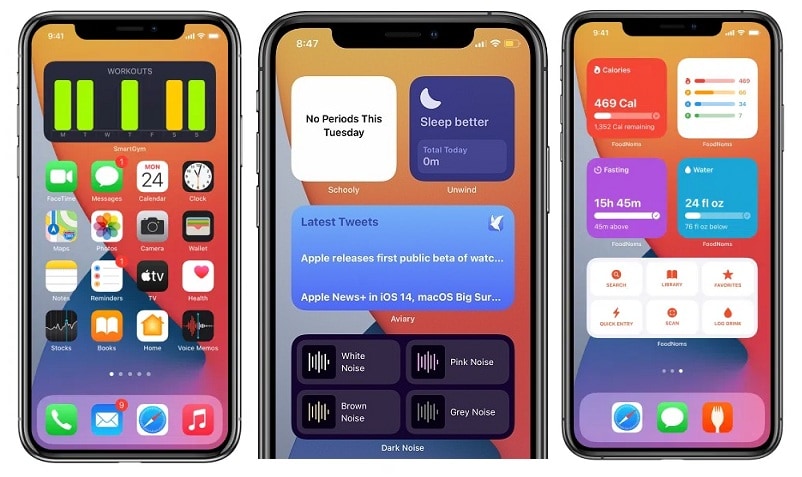
third party home screen widgets in iOS 14

Third-party home screen widgets in iOS 14

One of the most important changes coming in iOS 14 are the Home Screen widgets. Apple as updated most of the stock iPhone apps with widgets, but also allows developers to add widget functionality to third-party iOS apps. To get them you have to update all your downloaded apps, in the App Store, and check if you get new widgets options in the Add Widgets menu.


In this article we’ve created a collection with the first iOS and iPadOS apps that have update with support for the iOS 14 Home Screen widgets. This is an open list. Feel free to use the comments section at the end of the article to add an app to the collection.

100 Third-Part Apps That Provide Home Screen Widgets For iPhone & iPad

1. Pedometer++ (FREE) – Step Counter
2. DuckDuckGo (FREE) – Privacy, simplified.
3. Card Pointers (FREE) – Maximize rewards & cash back
4. Spend Stack ($3.99) – Lists for expenses & bills
5. Copilot: The Smart Money App (FREE) – Net worth and expense tracker
6. Nudget: Budgeting Made Simple ($2.99) – Quick entry, powerful insights
7. Pillow Automatic Sleep Tracker (FREE) – Alarm clock & sleep analysis
8. Personal Best Workouts (FREE) – Your workouts, ranked
9. HabitMinder (FREE) – Good Habit Tracker & Motivator
10. FoodNoms (FREE) – Count Calories & Track Macros
11. Slopes: Ski and Snowboard (FREE) – GPS Tracker for Snow Sports
12. WaterMinder ($4.99) – Daily Water Tracker & Reminder
13. Calory (FREE) – Calorie Counter & Food Tracker
14. Streaks ($4.99) – The habit-forming to-do list
15. HealthView (FREE) – Health & Fitness Dashboard
16. Unwind (FREE) – Wake Up, Focus, Sleep Better
17. SmartGym (FREE) – HIIT, Home, Gym Weight Lifting
18. Next: Magic DJ & Playlists ($4.99) – Rediscover your music library
19. Soor Music Player ($4.99) – A Beautiful Music Player
20. Apollo for Reddit (FREE) – The award-winning Reddit app
21. Aviary for Twitter ($4.99) – Beautiful micro-blogging
22. TripIt (FREE) – Trip & Vacation Organizer
23. Book Track — Library Manager ($4.99) – Keep track of your books
24. GameTrack (FREE) – Share your gaming life
25. Pocketdex (FREE) IV, Calc, Pokédex, PvP & Raids
26. Pennant (FREE) – Sports standings at a glance
27. LookUp: English dictionary ($5.99) – Learn a new word every day
28. Documents by Readdle (FREE) – File manager, media player
29. Day One Journal (FREE) – Your journal for life
30. PDF Expert: PDF Reader, Editor (FREE) – PDF viewer, converter, notes
31. GoodTask – To Do List Manager (FREE) – Reminders as To-do & Task app
32. Spark email (FREE) – Love your email again
33. Scanner Pro: PDF Scanner App ($3.99) – PDF Scanner, Fac and OCR
34. Drafts (FREE) – where text starts.
35. Calendars: Planner & Reminders (FREE) – Agenda, Organizer. To Do list.
36. Dice ($1.99) – The best random numbers
37. Carrot Weather ($3.99) – The crazy-powerful weather app
38. Weather Line (Free) – Super Forecast & Live Radar

Update 1: September 18
39. Robinhood: Invest. Save. Earn. (FREE) – Stocks, funds & trading tools
40. Coinbase – Buy & sell Bitcoin (FREE) – Secure cryptocurrency wallet.
41. Acorns: Invest Spare Change (FREE) – Investing. Earning. Growing.
42. Bazaart Photo Editor & Design (FREE) – Collage, Edit, Cut, Paste Pics
43. KAYAK Flights, Hotels & Cars (FREE) – Find the best travel prices
44. TripIt: Travel Planner (FREE) – Trip & Vacation Organizer
45. VectorVest Stock Advisory (FREE) – Win Trades. Make More Money.
46. World Clock Time Widget (FREE) – Global Timezone Calculator
47. Mooncast ($2.99) – Moon predictions.
48. Things 3 ($9.99) – Organize your life.
49. Blinkist: 15min Book Insights (FREE) – Business, Motivation, Politics.
50. Bring! Shopping List & Recipes (FREE) – Simple Grocery List and Wallet.

Update 2: September 19
51. Motivation – Daily quotes (FREE) – Positive reminders of the day
52. Parcel – Delivery Tracking (FREE) – Package Tracker
53. Translate Now – Translator (FREE) – Photo, Text, Voice Translator
54. Weather – The Weather Channel (FREE) – Widget with radar forecast
55. IMDb: Movies & TV Shows (FREE) – Tickets, trailers, and ratings
56. Countdown (FREE) – Day Counter: Timer & Widget
57. FotMob – Soccer Scores (FREE) – Scores, video highlights, news
58. Sweatcoin Walking Step Counter (FREE) – Pedometer app to reward health
59. Fitbod Workout & Fitness Plans (FREE) – Home & Gym Personal Trainer
60. Zero – Simple Fasting Tracker (FREE) – Fast for Whole Body Health
61. YAZIO Fasting & Food Tracker (FREE) – Calorie Counter and Diet Diary
62. Lifesum: Diet & Macro Tracker (FREE) – Weight, fitness & sports
63. NBC News: Breaking & US News (FREE) – Breaking News, Live News Video
64. Daylio Journal (FREE) – Super Easy Journal with Stats
65. Night Sky (FREE) – Guide to the Sky Above
66. Microsoft OneDrive (FREE) – File & photo cloud storage
67. Kitchen Stories Recipes (FREE) – Thousands of dishes to enjoy
68. Menstrual Period Tracker (FREE) – Ovulation and Period Calendar

Update 3: September 19
69. Zones for Training (FREE) – Heart Rate Zone Training
70. Debit & Credit (FREE) – Personal Finance Manager
71. Agenda (FREE) – Date-focused note taking
72. App in the Air (FREE) – Fly smarter
73. Twitch: Live Game Streaming (FREE) – Watch Fortnite, PUBG & IRL TV
74. Forecast Bar – Weather + Radar (FREE) – Accurate and Customizable
75. Habitify: Habit Tracker (FREE) – Daily Routine and Goal Tracker
76. Rise: Track Sleep & Circadian (FREE) – Wake up & fall asleep better
77. Period Plus Fertility Tracker (FREE) – Period Calendar Diary
78. Flow by Moleskine Studio (FREE) – Sketch. Think. Create.
79. ETA – Arrive on time ($2.99) – Driving & transit assistant
80. Citymapper: All Your Transit (FREE) – Bus, Subway, Train & MTA times
81. Class Timetable – Schedule App (FREE) – School and college organizer
82. Stepwise Pedometer (FREE) – Step Counter
83. Focus – Time Management (FREE) – Pomodoro for Professionals
84. Calory (FREE) – Calorie Counter & Food Tracker

Update 4: September 20
85. Widgetsmith (FREE) – Custom widgets with a high customization grade for iPHone Home Screen! Hot Widget!
86. Photobox Widget (FREE) – Home Screen Widget!
87. Photo Widget : Simple (FREE) – Add photo widget to iPhone Home screen.
88. Color Widgets (FREE) – Custom Widgets For iPhone. Very popular too!
89. Streaks Workout ($3.99) – For all fitness levels
90. Things 3 for iPad ($19.99) – Organize your life
91. The Weather Network (FREE) – Detailed Weather Forecast
92. Weather Widget & Radar (FREE) – Unique styles weather forecast
93. Zen: Guided Meditation & Sleep (FREE) – Anxiety Relief and Relaxation
94. Ate Food Journal – Photo Diary (FREE) – Mindful, Intuitive & Simple
95. HabitMinder (FREE) – Good Habit Tracker & Motivator
96. TickTick: To Do List & Remind (FREE) – Calendar, Reminders & Habit
97. Due – Reminders & Timers ($6.99) – Never Forget Anything Again
98. Pocket Lists (FREE) – Checklists, Tasks, Reminders
99. Timepage by Moleskine Studio (FREE) – The essential planner app
100. TuneTrack (FREE) – Music Statistics On Demand.
101. Musixmatch Lyrics Finder (FREE) – Lyrics for your music
102. News Break – Local Headlines (FREE) – Breaking & relevant stories

Update 5: September 23
103. TunnelBear: Secure VPN & Wifi (FREE) – Private Network Hotspot Proxy
104. Merriam-Webster Dictionary (FREE) – Dictionary.
105. Usage: Activity & Data Monitor (FREE) – Deep, insightsful, all-in-one
106. Stats: For Model S/X/3/Y ($34.99) –
107. Replica: Mirror Fire Stick TV (FREE) – Mirroring Android & Chromecast
108. Launcher with Multiple Widgets (FREE) – Customize your home screen
109. VinylBox – Scan Records (FREE) – Track your vinyl with Discogs
110. OpenTable (FREE) – Find Restaurant Reservations
111. MyWeather – 10-Day Forecast (FREE) – Widget, Notification & Themes
112. Quit Anger: Anger Management (FREE) – Mental Health & Selfcare Tools
113. Pocket Yoga ($2.99) – Practice yoga anywhere
114. Google (FREE) – Search news, images and videos
115. Yandex (FREE) – Fast and secure browser
116. Eventime – Event Countdown (FREE) – Countdown widget for iPhone and iPad.

Is your iPhone having a hardware problem, like a cracked screen or a weak battery? Go Mobile offers iPhone repair in Charlotte, NC.

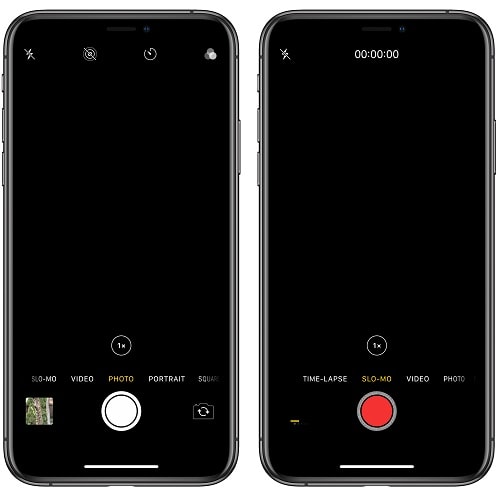
iPhone 11 experiencing Camera black screen problem

iPhone 11 experiencing Camera black screen problem.

Your iPhone can do a lot of things, but one of the most popular one is its ability to take spectacular photos and videos. If you’re an average user you don’t even need a dedicate photo camera anymore. The iPhone, as well as the entire smartphone industry has benefited from huge tech-leaps, that now allow users to easily and quickly snap all important moments in their lives.

However, nothing is perfect in this world, and neither your iPhone. In rare cases, it can happen that you want to shoot a photo or record a video, but the Camera app malfunctions and displays a black screen instead of the viewfinder! The iPhone’s camera can act like frozen, stuck, out of focus and unresponsive. If that’s the problem that you’re dealing with, don’t panic! You’re not the first one. This issue has already occurred to many others, including us. Read on and you’ll learn how to fix it!

5 Tips To Fix The Black Screen iPhone Camera Problem
In most cases this issue is caused by a software glitch. That’s probably your case too. If your iPhone’s camera would experience a hardware problem, iOS would be able to detect it an display a warning message on the screen. Let’s see how to fix the iOS Camera black screen:
how to switch between iPhone front and rear camera1. Switch Between Cameras
The first fix that you can apply is to tap the flip-camera icon, available in the bottom-right corner of the screen (when holding the device in portrait view).
In some cases, the front-facing camera fails to activate and could output a black screen in the process. However, if you switch to the rear facing camera the viewfinder might start to display properly.
If that’s the case, you can switch again and check if the selfie-cam is working normally again.

how to close Camera app on iPhone2. Close / Reopen Camera App
If you have lots of processes ongoing on your iPhone and open the Camera app with a sudden gesture, it might happen that the software doesn’t boot up properly. This will cause the viewfinder to display a black screen. To fix it you will have to force close the Camera app and reopen it.
How to: Swipe-up from the bottom of the screen to bring up the iOS App Switcher.
Fact: For owners of iPhones with a Home button, you have to double-click it, to bring unveil the App Switcher.
-> Slide-up the card with the Camera app. This has closed the software for good.
-> Now, go back to the Home screen and tap on the Camera icon to reopen it.

how to initiate FaceTime call3. Try To FaceTime
If you performed the two steps listed above an the Camera is still showing a black screen you can try to use the Camera via a different app. Video calling is a good option. Your first choice should be an iOS stock app, FaceTime. Open the app and pick a close contact that you can use for debugging your device’s camera. Initiate the call and see if the Camera unfreezes.
How to: Open FaceTime -> pick an entry from the Recent Calls list or tap the “+” icon available in the top-right corner of the screen to search for a contact. -> Initiate FaceTime call.
Fact: Other video calling apps available are Skype, WhatsApp, Zoom, but we’ve received positive results with FaceTime for iOS.

how to power off iPhone 114. Restart iPhone
In some cases step 3 is the winner, but in others you’ll manage to have a successful FaceTime video call and as soon as you hang up and open the Camera app you get the black screen again! In this case your next option is to power your iPhone off and turn it back on, with the hope that a reboot should fix this glitch.
How to: Press & hold the Side Button and the Volume Up button of your iPhone until the “slide to power off” screen is displayed on your device -> Perform the slide to the right and turn of your iPhone. -> Wait for a few moments before you press & hold the Side Button again. This time until the Apple logo flashes on your screen. -> Release and wait until the iPhone boots up. -> Provide your Passcode and check if the camera is back functional!
Fact: iPhone users with a Home button just have to press & hold the Sleep/Wake button to reach the shutdown screen!

how to disable iphone voice-over feature5. Disable Voice-Over
Most of the camera black screen problems should be solved by now. If your iPhone still refuses to open the Camera app properly there is one more trick that you can apply. The iOS Voice-Over feature is sometimes a trigger for this glitch. Let’s check if it’s active on your device:
How To: Open the Settings app -> Tap on Accessibility -> Select Voice Over and make sure that the feature is disabled!
Fact: All fixes provided on this page also work for the iPad Camera black screen issue!

Additional Troubleshooting
If none of the above managed to fix your iPhone Camera black screen, there are a few more options to check before deciding to bring your iOS device to a repair shop:
how to disable Location Services for CameraA. Disable Camera Location Services
You could also try to turn off the Location Services for the Camera app and see if this will do the trick.
1. Open Settings.
2. Go to Privacy.
3. Select Location Services.
4. Tap on the Camera label and select Never in the Allow Location Access options.

how to reset iPhone to factory settingsB. Reset To Factory Settings
The remaining two options are quite radical more aggressive. Please make sure that you have a full backup of your iPhone available on iTunes or iCloud.
1. Open Settings.
2. Tap on General.
3. Scroll for Reset.
4. Select Reset All Settings and follow the on-screen instructions.

C. Erase All Data And Reset iPhone
Be careful, this option will erase all data from your device. You will be able to restore from a backup or set it up as new.
1. Open Settings.
2. Tap on General.
3. Scroll for Reset.
4. Select Erase All Content and Settings and follow the on-screen instructions.

If nothing works, please contact us